

You can now move past projects into Klipeo. Open Settings > Migrate, pick the projects you want, and choose Import. Each one becomes a Klipeo project with its clips already on the timeline.
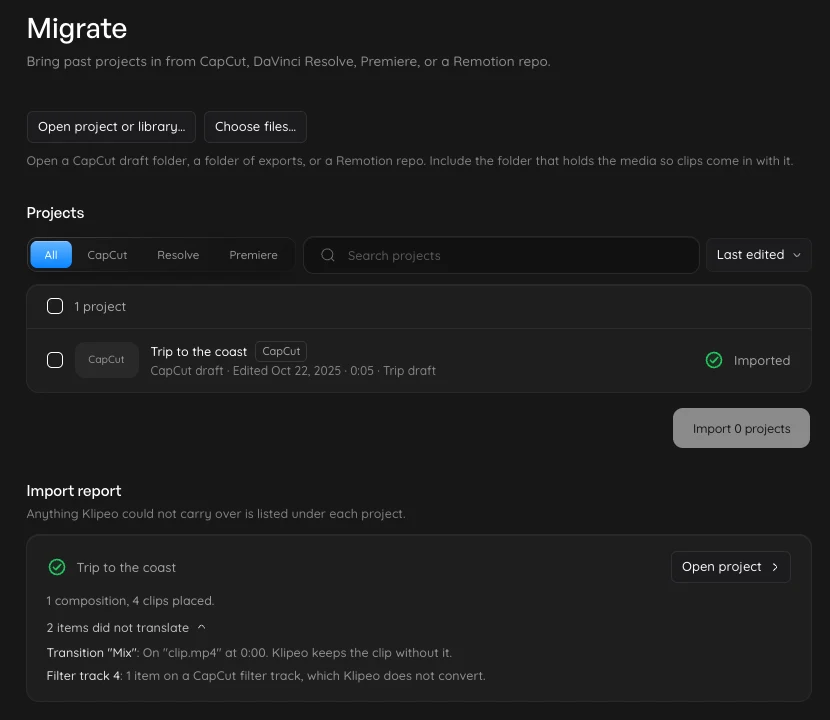
The Mac app finds them for you
In the Mac app, Migrate lists the CapCut drafts, DaVinci Resolve projects, and Final Cut Pro or Premiere exports already on your Mac. Filter by editor, search by name, sort by Last edited, tick the ones you want or select them all, then choose Import N projects. Your footage stays on your Mac, so there is no upload size limit.
Or open a folder
In a browser, or for a project stored somewhere else, choose Open project or library… and pick a CapCut draft folder, a folder of exports, or a folder of several projects. Include the folder that holds the media so each clip comes in with it.
What comes across
Clips keep their place, trims, track order, speed, volume, position, scale, and rotation. Text and titles come in as Klipeo text. Resolve timelines come in through FCPXML, and Premiere sequences through Final Cut Pro XML.
When an import finishes, the report lists anything Klipeo could not carry over, item by item: a transition, an effect, a speed curve, a missing file. You know exactly what to redo.
Remotion repos too
Open a Remotion project's folder and each composition becomes a Klipeo composition with the same size, frame rate, and length.